Published: · Author: UBIK365 Kft.
Customer-facing and staff tablets in stores: what the Tchibo case shows
A device placed in a customer area belongs to everyone and no one. Six questions to answer before rollout.
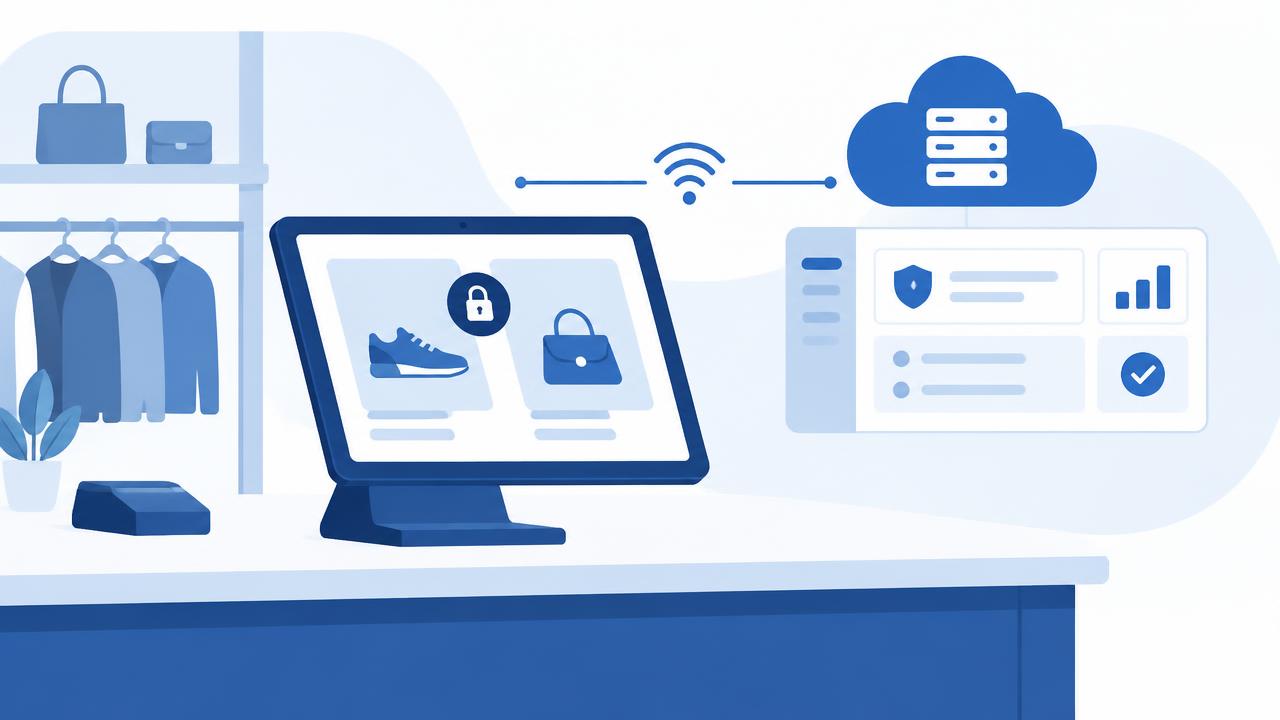
In Tchibo stores, locking down, restricting and remotely managing the customer and staff tablets placed in the shops was solved with central device management. This kind of task is appearing at more and more retail, hospitality and service companies – and the same questions come up every time.
1. Who uses the device?
Anyone can pick up a customer tablet, and a staff device is typically shared across shifts. In neither case is there an 'owner' who looks after the settings. So the device has to stay in order by itself: the management system's kiosk mode locks the tablet to one or a few selected apps, with its own wallpaper and interface.
2. What can the user reach?
App allow-listing defines what can be launched. A customer tablet typically runs a catalogue or information screen, a staff device a few internal apps. The settings menu, status bar and non-approved apps can be blocked, so users cannot 'escape' the selected view.
3. What happens if someone leaves the selected app?
In a single-app kiosk, leaving is technically impossible; in a multi-app kiosk, users only switch between the allowed items. After a restart, the device returns to the same view. Exiting the kiosk is reserved for IT – from the console or with an admin password.
4. How is content updated?
A new app version, a new catalogue URL, a changed wallpaper or banner: all of these can be distributed centrally from the console to every affected device. Nobody has to visit store after store, and updates are not left to store staff.
5. How do we know remotely that the device works?
Status monitoring shows when the device last checked in, which OS version it runs and whether it received the latest profile. If a tablet has not checked in for days, you find out before a customer tells you. On Android devices, remote support with a live screen also enables troubleshooting.
6. What if it disappears?
A tablet that has been taken or gone missing can be locked or suspended from the console and wiped if needed. The last known location is visible if the device was able to report it and company policy allows it.
Checklist for rolling out deployed devices
- Define per device type who uses it (customers, staff, several shifts).
- List which apps should be available and which device is a single- or multi-app kiosk.
- Decide what is blocked: settings menu, status bar, camera, app store.
- Build a base profile with wallpaper, banner and network settings, and assign it to every new device.
- Record who may exit the kiosk for maintenance, and how.
- Set up status monitoring: last check-in, OS version, profile status.
- Prepare for loss: lock, suspend, wipe – and who decides.
- Pilot it in a few stores before extending it to the whole network.
Planning customer-facing or shared devices? We help you put the kiosk profile together.