One console for the entire fleet
Android, iOS/iPadOS, macOS, Windows, ChromeOS and Wear OS devices from one cloud console. Windows and ChromeOS machines use the same licence as mobile devices.
- Android
- iOS/iPadOS
- macOS
- Windows
- ChromeOS
- Wear OS
Mobile device management for mixed enterprise fleets
Mobile device management (MDM) means enrolling, configuring, governing, supplying apps to, supporting and protecting company devices – from one place. Our solution manages Android, iOS/iPadOS, macOS, Windows and ChromeOS devices from a single cloud console, and we stay with you from comparison to rollout.
Capabilities differ by platform – for every feature on this page we show where it is available.
Our specialists help you choose the right solution and licence, configure it and run it.
MDM – central supervision of mobile devices – means IT no longer sets up and maintains company phones, tablets and laptops one by one, but from a single place. EMM (enterprise mobility management) and UEM (unified endpoint management) extend the same idea to apps, company content and desktop computers, so the whole fleet stays in one system.
The features below cover these six steps – and each detailed description shows exactly what is available on which platform.
Android, iOS/iPadOS, macOS, Windows, ChromeOS and Wear OS devices from one cloud console. Windows and ChromeOS machines use the same licence as mobile devices.
Different rules during and after working hours, on the company Wi-Fi, after a SIM swap or while roaming, or at a designated site – automatically, with no manual step.
IT sees and controls a colleague's Android device live, sends files and records the session. Roles define who may start a session and whether the user must approve it.
Pre-registered Android devices join management automatically on first power-on; Windows machines via a provisioning package or Entra ID; Apple devices via Apple's business enrolment.
Remote lock or suspension, wipe of the whole device or just the work profile, last known location. Private data can stay untouched.
Single- or multi-app kiosk with your own wallpaper and folders – for customer areas, warehouses and receptions. No separate kiosk software to buy or build.



The management system handles Android, iOS/iPadOS, macOS, Windows, ChromeOS and Wear OS devices from a single cloud console. IT no longer has to maintain a separate system, inventory and permission model for each platform.
Windows and ChromeOS devices register with the same licence as mobile devices, so licensing can be planned for the fleet as a whole. Apps are deployed from the right source on each platform: a managed app store, an enterprise app store or the company's own in-house apps.
Depth of control differs by platform. Most settings and the most granular control are available on Android devices – and within Android, on devices from certain manufacturers; on iOS the management framework permitted by Apple applies.
Where it is available
Android · iOS/iPadOS · macOS · Windows · ChromeOS · Wear OS
The feature set differs by platform; we hand over the detailed platform matrix with your quote.
Policies can be enforced not only statically but also in response to events. A rule set can switch based on day and time, a specific Wi-Fi network (SSID), a SIM card change, roaming, a geographic area (geofence) or an app being opened.
The camera can, for example, be blocked automatically at a designated site, the available apps narrowed outside working hours, and a stricter profile applied after a SIM swap. The rule applies by context without manual supervision, and reverts when the condition ends.
An important limit: time- and app-based events work on both Android and iOS, while SIM-swap and geofence rules work on Android devices only.
Where it is available
Android (time, app, Wi-Fi, SIM swap, roaming, geofence) · iOS (time- and app-based events)
SIM-swap and geofence rules are available on Android only.
Want to see which feature is available on which platform?
Request a per-platform feature overviewIn a remote support session started from the console, the IT specialist sees the screen of the user's Android device live, can take control, capture screenshots and recordings, and send files to the device.
Permissions are tied to roles: 'view only' or 'control during the session'. You can decide whether the user must approve the session – on certain devices and in work-profile setups this is mandatory.
A large share of site visits and 'what do you see on your screen now?' phone calls can be replaced this way. Live screen and remote control are not available on iPhone and iPad.
Where it is available
Android
No live screen or remote control on iOS. Not every manufacturer's devices allow a session without the user's approval.
The enrolment method decides how fast a rollout goes. Android devices pre-registered – typically by the reseller – join management automatically during the setup wizard on first power-on and receive the company profile and apps; according to the documentation they also return to management after a factory reset.
Windows machines can be enrolled in bulk with a provisioning package (PPKG) or a Microsoft Entra ID account. Company iPhones and iPads join through Apple's automated device enrolment in supervised mode, while personally owned Apple devices use user enrolment, keeping private data separate.
IT therefore no longer has to pick up and set up every device individually.
Where it is available
Android (automatic enrolment for pre-registered devices) · Windows (PPKG / Entra ID) · iOS/iPadOS (Apple business enrolment)
Automatic Android enrolment depends on the manufacturer and purchasing channel. Non-removable, enforced device lock-in is not part of the base solution and can be discussed as an add-on.
In a mixed fleet, the enrolment method sets the pace of the rollout.
Let's discuss your fleetWhen a device is lost or stolen, a lock or suspension can be issued from the console immediately, the last known location can be viewed, and either the whole device or only the work profile can be wiped.
The latter is the practical benefit of separating business and private use: even when an employee leaves, only the company part is removed and private data stays untouched.
Commands differ by platform. The scope of location tracking and supervision is set by the company's internal policy and by data protection and employment rules; the last known location is only available if the device was able to report it.
Where it is available
Android · iOS/iPadOS · Windows – with a different command set per platform
Work-profile-level wipe is available on Android.
A wizard in the console builds a single- or multi-app kiosk: custom wallpaper, folders, clock, calendar, banner and a built-in browser. Users reach only the selected apps; the settings menu and status bar can be blocked.
Customer information tablet, warehouse scanner, reception check-in or showroom demo device – without buying or developing a separate kiosk launcher.
The kiosk profile can be changed centrally and assigned to new devices, so the devices of a new store or site get the same view.
Where it is available
Android · Windows 10/11 · iOS/iPadOS (single-app lock) · ChromeOS · Wear OS
Customisation options differ by platform and OS version.
We put together a licence and rollout proposal tailored to your company.
Request a quoteEight questions that clear up most misunderstandings before a purchasing decision.
Beyond platform coverage, what matters is how evenly features are available across platforms.
The ownership model – company-owned, company-owned with personal use, personal – decides the enrolment method and how private data is handled.
Automatic enrolment on first power-on or a manual process: with a hundred devices, that is a difference of weeks.
With several vendors, remote screen viewing and remote control sit in a separate, more expensive package – ask about it.
Context-aware policy instead of static blocking: one rule on site, another outside working hours.
Without selective work-profile wipe, both leaving the company and losing a device mean a full wipe.
For customer-facing or single-purpose devices: a kiosk built in the console instead of separate software.
Licensing, configuration, pilot and operations – and whether local expert support is available.
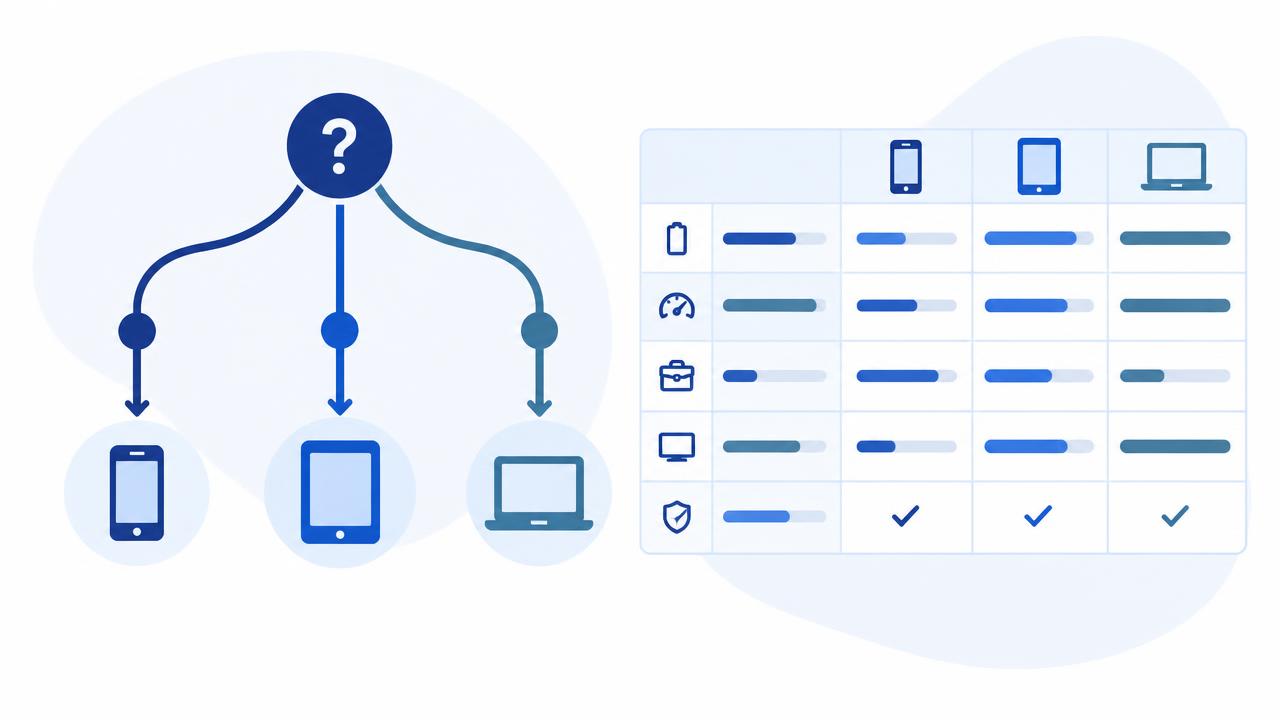
Choosing an MDM is not about comparing feature lists, but about clarifying what the system must do on your devices. Seven steps and a question list.
Read more →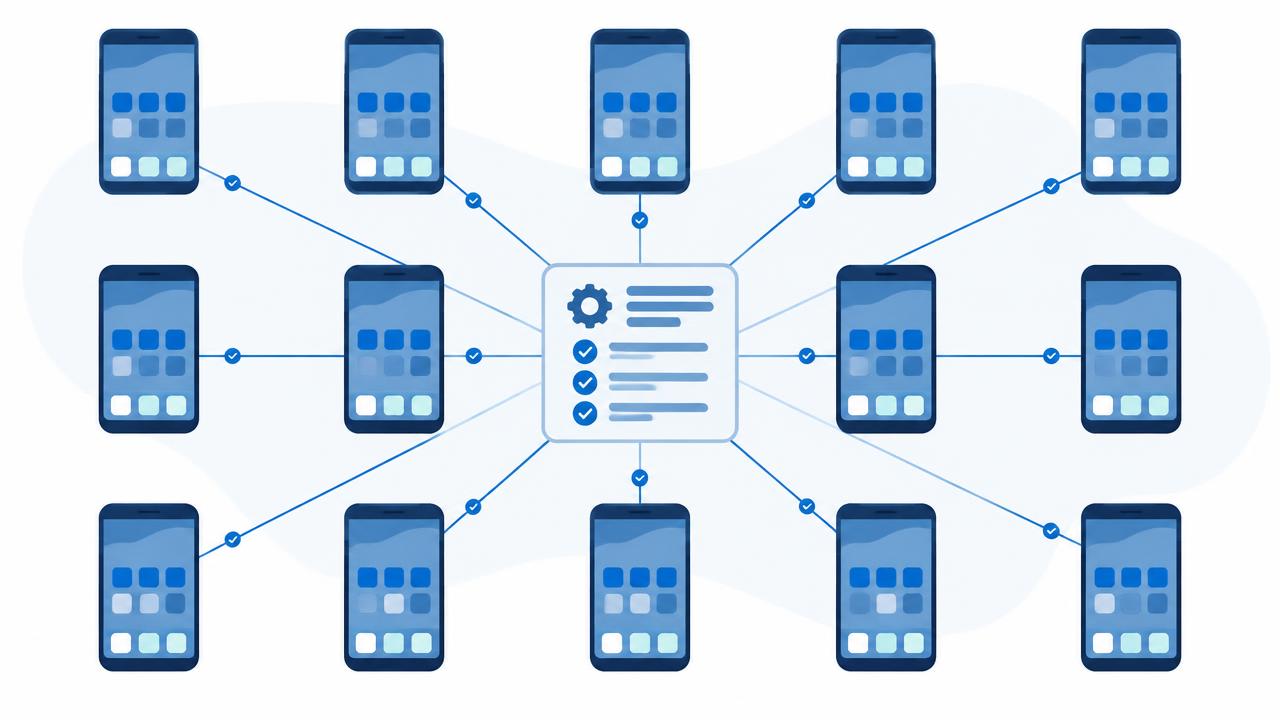
If every device is a little different, every change and every troubleshooting session starts from scratch. Standardisation is one of the least visible but most useful MDM steps.
Read more →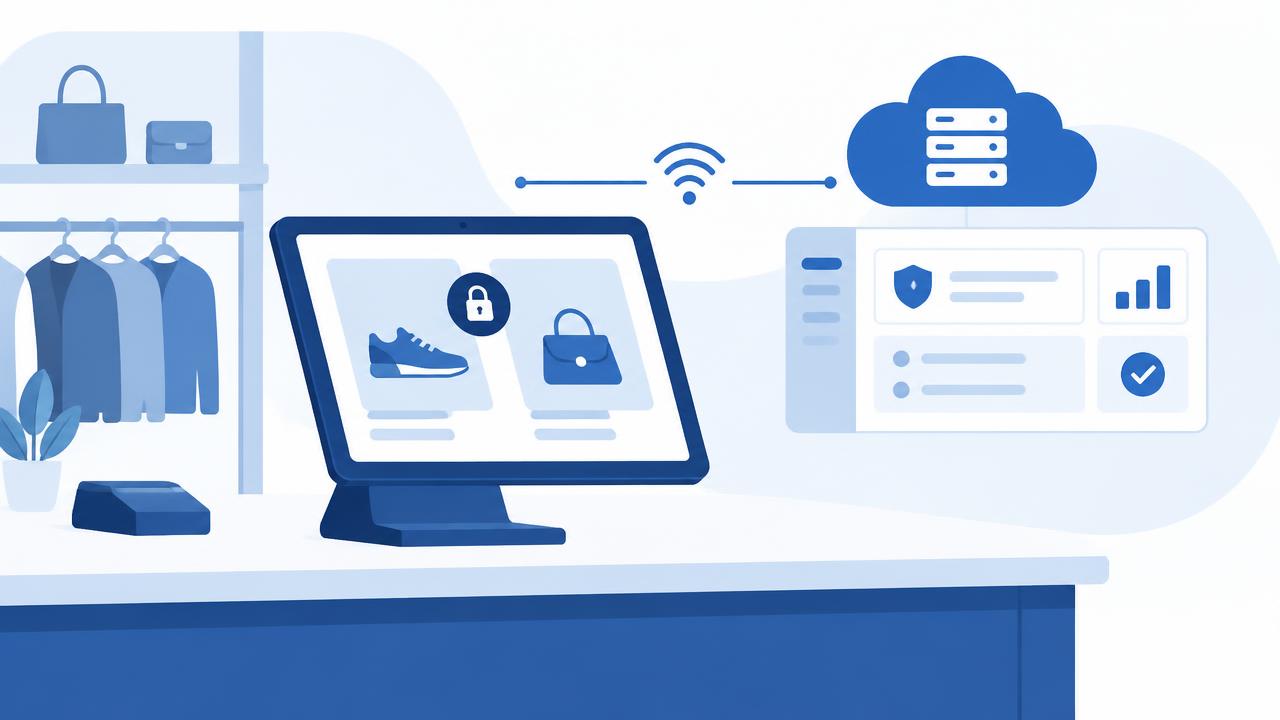
A device placed in a customer area belongs to everyone and no one. Six questions to answer before rollout.
Read more →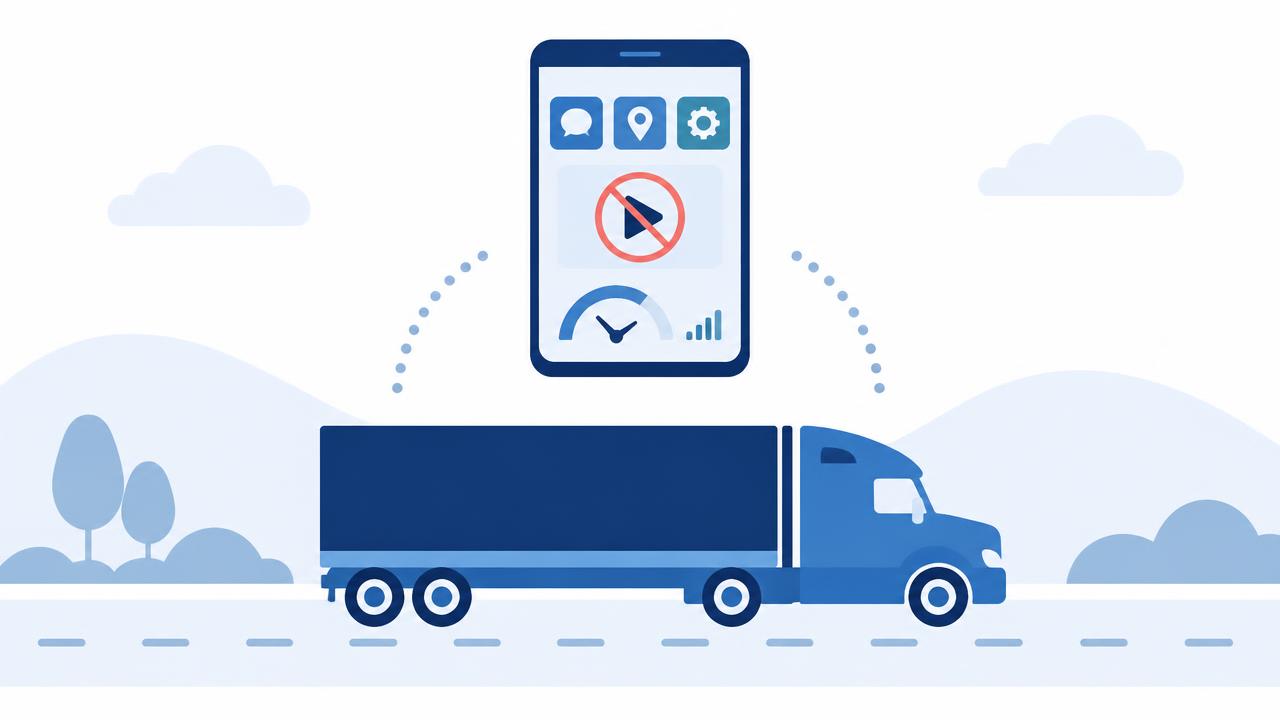
You cannot govern more than a hundred company phones by hand. Waberer's driver phones show which MDM step solves which problem.
Read more →Get in touch: our specialists help you choose the right solution and licence, configure it and run it.
UBIK365 Kft. – enterprise mobility solutions, Budapest.